


UniFi Endpoint
4.6208.00 Reviews
App Specs
- Version
- 4.0.3
- Updated On
- License
- Free
- Downloads
- 100,000+
- Developer
- Ubiquiti Inc.
- Categories
- Business
- Platform
- Android
Screenshots
 Analysis by AppCompare
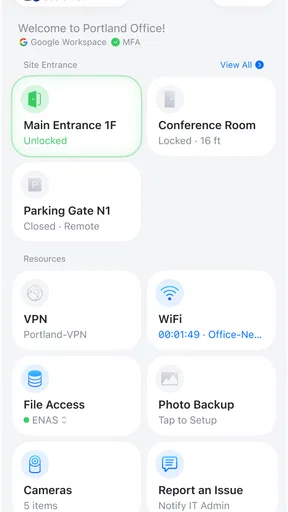
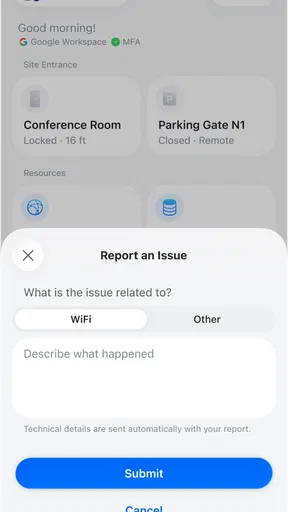
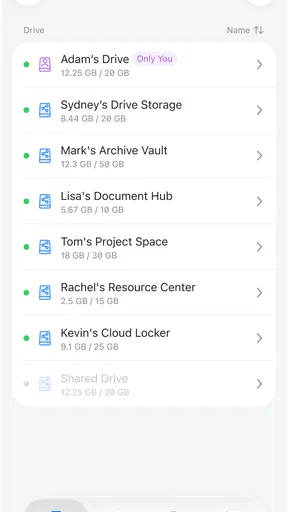
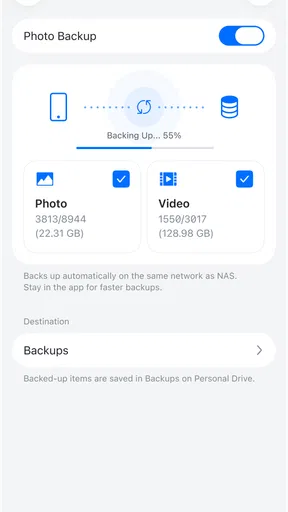
I usually judge a business app by what happens between the first tap and the moment a task is actually finished. UniFi Endpoint takes a very focused approach: it is designed around connecting an endpoint to a UniFi environment with as little ceremony as possible. That narrow purpose is also its main strength. Instead of trying to become a full office dashboard, it concentrates on getting a device into the right workflow quickly.
Developed by Ubiquiti Inc., this free business app is aimed at people who already work with UniFi equipment or services and need a practical mobile entry point. I found the idea easy to understand, but the experience depends heavily on whether UniFi is already part of your setup. If it is, the app can remove a surprisingly annoying step from everyday work. If it is not, there is little reason to install it just because the store summary sounds convenient.
From an unconnected device to a usable endpoint
The most realistic starting point is a device that needs to be associated with a UniFi setup. That might be a work phone, a shared tablet, a computer used at reception, or another endpoint that has to join an organization’s existing environment. In that situation, the problem is not usually a lack of technical knowledge. The problem is interruption: finding the correct application, locating the right connection path, and making sure the device ends up in the intended place.
My first impression is that UniFi Endpoint is built for that moment rather than for long sessions. The store summary calls it “One-Click Connection,” and that description points to the app’s role more accurately than a broad label such as “business management.” It is not the kind of tool I would open to prepare reports, edit documents, or coordinate a team. I would open it when a connection needs to happen and I want the shortest route available.
That distinction matters when deciding who should use it. An administrator supporting several UniFi-connected devices can benefit from a dedicated mobile handoff. A small business owner who only needs a general network utility may be better served by the broader UniFi tools relevant to their equipment. Someone without a UniFi environment should skip this app entirely; the one-click idea has value only when there is a compatible destination waiting on the other side.
The first step: prepare the handoff
In practice, I would begin by confirming which device is being connected and which UniFi environment should receive it. That sounds obvious, but it is where many setup mistakes begin. A shared tablet and a personal phone may be physically next to each other while belonging to completely different workflows. Before tapping through the app, I would make sure the endpoint is the one intended for the job and that the person responsible for the UniFi side is ready to approve or complete the next step.
This is one of the less obvious strengths of a focused connection app: it encourages a clean division of responsibility. The person holding the endpoint does not necessarily need to understand every administrative detail. They can follow the connection process while an administrator handles the destination environment. In a shop, office, or small service business, that can be more useful than giving every employee access to a full management interface.
Worth Reading Before You Choose

EA SPORTS FC Mobile 26 Is a Bigger Football Game, but It Takes Time

Flipboard Shows What News Apps Must Do Beyond the Feed

Switching to Android Auto Means Rethinking Your Driving Routine

Google Calendar Makes a Crowded Week Easier to Manage

Ludo King Makes the Most of the Minutes Between Plans

Baby Panda World Brings Quick Play to Modern Phones, but Its Game Library Feels Busy
I would also avoid treating the app as a magic repair button. A one-tap connection cannot solve a wrong account, an unavailable destination, or an endpoint that is not ready for the intended environment. The app can simplify the action, but it does not remove the need to know what the action is supposed to accomplish. That is an important trade-off: less friction during the handoff, but not less responsibility for choosing the right handoff.
What the connection flow feels like
Once the endpoint is ready, the appeal is straightforward. Rather than moving through a long sequence of unrelated settings, I can use the app as a direct bridge into the UniFi workflow. The best use of it is therefore procedural: open the app, identify the connection opportunity, complete the requested action, and return the device to the person or team that needs it.
I would describe the experience as task-oriented rather than exploratory. There is no reason to spend time browsing if the only goal is to connect one endpoint. That makes the app approachable for a staff member who is not the network administrator. The person does not need to learn the entire UniFi ecosystem before completing a narrowly defined assignment.
There is also a useful operational tip here. Treat each connection as part of a small checklist instead of tapping through it casually. Record the device’s intended user or location before starting, confirm the correct UniFi destination, and verify the result immediately afterward. This is especially important when several identical devices are being prepared in a row. The app may make each individual connection quick, but a fast mistake can still create confusion later.
Where the administrator fits
The handoff between the endpoint user and the administrator is central to the app’s usefulness. In a realistic office scenario, an administrator might prepare the UniFi side while a colleague has the physical device. The colleague uses the mobile app to initiate or complete the connection, then reports back that the device is ready. That division can reduce the need for the administrator to handle every phone or tablet personally.
For a small business, I can imagine this being helpful during onboarding. A new employee receives a company device, a manager confirms which environment it belongs to, and the device is connected without turning the process into a long technical appointment. The outcome is not glamorous, but it is practical: fewer people need to touch the same device, and the person responsible for infrastructure can keep control of the overall setup.
The same workflow can work for temporary equipment. A shared endpoint used in a meeting room or at a front desk may need a predictable connection without becoming a permanent personal device. In that case, the app’s value is not just speed. It is the clarity of having a repeatable procedure that can be handed to another employee.
Still, I would not assume that every handoff will be completely automatic. If the endpoint is being connected to the wrong environment, if the administrator is unavailable, or if the device needs decisions beyond the connection itself, the process stops outside the app. That is not necessarily a flaw in the app’s design; it is a reminder that endpoint connection is only one part of device administration.
What happens after the tap
A successful connection should lead to a simple outcome: the endpoint is now associated with the intended UniFi workflow and can be used by the person or team who requested it. For me, the important test is whether the app helps me leave the setup screen and get back to work. A connection utility earns its place when it reduces setup time without creating a second layer of follow-up tasks.
I would verify the result rather than assuming that a completed-looking screen means the job is finished. Check the endpoint in the place where it will actually be used, confirm that the expected user can proceed, and make a short note of the device’s location if the organization manages several endpoints. This extra verification is a practical habit, not a complaint about the app. It protects against the most common operational problem: a device that appears connected but was assigned to the wrong person or area.
Another useful insight is that the app is best viewed as a controlled doorway, not as the whole building. It can make the initial transition smoother, but ongoing administration may still belong in other UniFi tools or in the organization’s normal device-management process. People expecting one app to handle every network, account, and endpoint task may feel disappointed. People who need a clean connection step are more likely to appreciate its limited scope.
How it compares with usual business alternatives
The usual alternative is to connect an endpoint through a general-purpose management application, browser interface, or a sequence of device settings. Those approaches can be more flexible, especially for administrators who need to inspect many options at once. They can also be slower for a staff member whose only assignment is to connect one device correctly.
UniFi Endpoint makes more sense when the organization values a repeatable, low-explanation handoff. A general management interface is better when the same person must configure, troubleshoot, monitor, and document the endpoint in one session. A browser-based route may be preferable when the work is being done at a desk and the administrator needs a larger view. The app’s advantage is mobility and focus, not breadth.
I would also separate it from generic device-connection utilities. Those may help with a particular wireless or local pairing task, but they do not necessarily fit a UniFi-centered organization. This app is more specialized, which is exactly why it can feel efficient in the right environment and irrelevant everywhere else. Choosing it is less about finding the most powerful tool and more about matching the tool to the existing UniFi workflow.
Friction points I would plan around
The biggest limitation is its dependency on context. Without a UniFi setup and a clear endpoint assignment, the app has no meaningful job to perform. That makes it a poor recommendation for casual users looking for a general networking app. Its business category should be taken seriously: the value comes from an organization’s process, not from standalone experimentation.
The second limitation is that a quick connection can hide an unclear ownership process. If nobody knows who approves the endpoint, who checks the result, or who supports the device afterward, the app cannot create that procedure for you. I would establish those roles before rolling it out to a team. Otherwise, employees may complete the connection successfully but still not know what to do when the endpoint behaves unexpectedly later.
There is also a human-factor issue. A one-click design is excellent for reducing unnecessary steps, but it can encourage people to rush. When preparing many devices, use a label, asset name, or location note outside the app’s connection action so that the physical endpoint stays matched to the administrative record. This is a concrete workflow improvement that matters more than shaving another moment off the tap itself.
Compatibility is another practical consideration. The app supports devices running Android 7.0 or later, so an organization with older hardware should check its device inventory before standardizing on it. The current version is 4.0.3, and keeping the app updated is sensible when it is part of a managed onboarding process. I would test the exact workflow on one representative endpoint before asking a large group of employees to use it.
Who gets the most value from it
I think UniFi Endpoint is a good fit for small and medium-sized teams that already rely on Ubiquiti’s UniFi ecosystem and need a simple way to bring endpoints into an established process. It is particularly suitable when the person holding the device is not the same person managing the network. That separation is where the app can save real effort.
It may also suit organizations that frequently prepare shared devices. A reception tablet, a meeting-room device, or a rotating work phone can be handled through a consistent connection routine rather than an improvised explanation each time. The app is less compelling for a single home user who rarely changes anything, or for a technical administrator who prefers complete control from a desktop interface.
The age rating is Everyone, which fits the app’s professional utility and straightforward purpose. The absence of a purchase barrier is helpful for testing it with a small group before wider adoption. I would still judge it by the time it saves in the actual workflow, not simply by the fact that it is free. A free app that does not match your infrastructure is still unnecessary software.
What the numbers suggest, and what they do not
The app has a 4.6 average from around 5.7 thousand ratings, with more than 100 thousand installs. Those figures suggest that it has found a real audience among people who need this kind of UniFi endpoint workflow, rather than being an obscure experiment. I see that as encouraging, but not as proof that it will fit every organization.
The rating is most relevant when interpreted alongside the app’s narrow purpose. Users who need a direct UniFi connection are likely to value its simplicity, while people expecting a complete business-management suite may judge it differently. I would read the overall reception as a reason to try it in a controlled workflow, not as a substitute for checking whether your own devices and responsibilities match its design.
My recommendation after following the workflow
After looking at the complete path from an unconnected endpoint to a confirmed handoff, I see UniFi Endpoint as a specialized tool that succeeds by refusing to do too much. Its strongest moment is the transition between “this device needs to join our UniFi setup” and “the responsible person can continue working.” That is a modest goal, but it is a useful one when repeated across an office.
My practical recommendation is to use it as part of a documented onboarding or device-connection routine, not as a replacement for broader UniFi administration. Decide who prepares the destination, who holds the endpoint, and who verifies the result. With those roles clear, the app’s focused design can make handoffs faster and less intimidating.
Ubiquiti Inc. has positioned this as a free business app, and I think that positioning is accurate. I would recommend it to UniFi users who want a clean mobile connection step, especially when nontechnical staff need to participate. I would skip it if you need detailed device management, broad networking controls, or a tool that works independently of UniFi. For the right workflow, though, its simplicity is not a missing feature; it is the reason to install it.
Pros
- Centralizes endpoint visibility and management in one dashboard.
- Useful device health and security insights for IT administrators.
- Integrates well with supported UniFi networking equipment.
- Helps identify outdated software and potential security issues.
- Clean interface makes routine monitoring relatively straightforward.
Cons
- Requires compatible UniFi hardware and ecosystem for full functionality.
- Some advanced controls may depend on UniFi subscription services.
- Limited value for users without administrative access to a UniFi network.
- Endpoint coverage and features can vary by operating system.
- Initial setup may be complex for small teams with limited IT experience.
FAQs for UniFi Endpoint
What is UniFi Endpoint and who is it designed for?
UniFi Endpoint is a management and security solution designed to help organizations monitor and protect devices connected to their UniFi environment. It is mainly intended for businesses, IT administrators, and teams using UniFi networking or security products. Before downloading it, users should understand that many features depend on a compatible UniFi account, supported hardware, and administrator permissions rather than working as a completely independent app.
What devices and platforms are compatible with UniFi Endpoint?
Compatibility can vary depending on the UniFi Endpoint version, the operating system, and the UniFi products managed by your organization. The app may require a relatively recent Android or iOS version, internet access, and a properly configured UniFi console or account. Check the current store listing and official UniFi documentation before installation, especially if your phone uses an older operating system or your organization has legacy equipment.
Is UniFi Endpoint free to download and use?
The application may be available to download without an upfront charge, but that does not necessarily mean every management or security feature is free. Access can depend on your organization’s UniFi subscription, licenses, hardware, or administrator configuration. Some users may only need an invited account, while others could require paid services. Review the pricing details and permissions associated with your UniFi deployment before relying on it.
What information and permissions does UniFi Endpoint require?
Because UniFi Endpoint is intended for device management and security monitoring, it may request access to account information, device status, network details, notifications, and other permissions needed for alerts or administration. The exact requirements depend on the platform and enabled features. Only install it from an official store, use a trusted UniFi account, and review the privacy policy if you are concerned about how organizational or device data is handled.
Can UniFi Endpoint replace antivirus or mobile device management software?
UniFi Endpoint should not automatically be treated as a complete replacement for antivirus, endpoint detection, or enterprise mobile device management software. Its capabilities depend on the UniFi services and hardware connected to your account, and it may focus on visibility, access control, monitoring, or security administration. Organizations should compare its available protections with their compliance requirements and continue using additional security tools when broader endpoint coverage is necessary.


